Nano Banana 2 Prompts: Examples and Settings for Still Images
Build Nano Banana 2 prompts for product scenes and illustrated layouts. Choose the model, control enhancement, and improve the result with focused revisions.
How-to By Pipe2.ai Updated October 20, 2026
On this page
Try these pipelines
Useful Nano Banana 2 prompts describe a subject, its position, the setting, lighting, and what must stay out of the frame. In Pipe2 Image Generator, select Nano Banana 2, paste your brief, choose an aspect ratio, and run to get a still image. The examples below are starting briefs, not tested outputs or guarantees.
Availability note: Nano Banana 2 is Gemini 3.1 Flash Image, with a scheduled shutdown on October 29, 2026. Nano Banana 2.1 is its replacement and a separate selection. Check availability before committing to a series; a prompt can be reused, but another model can interpret it differently.
Turn a subject into a clear image brief
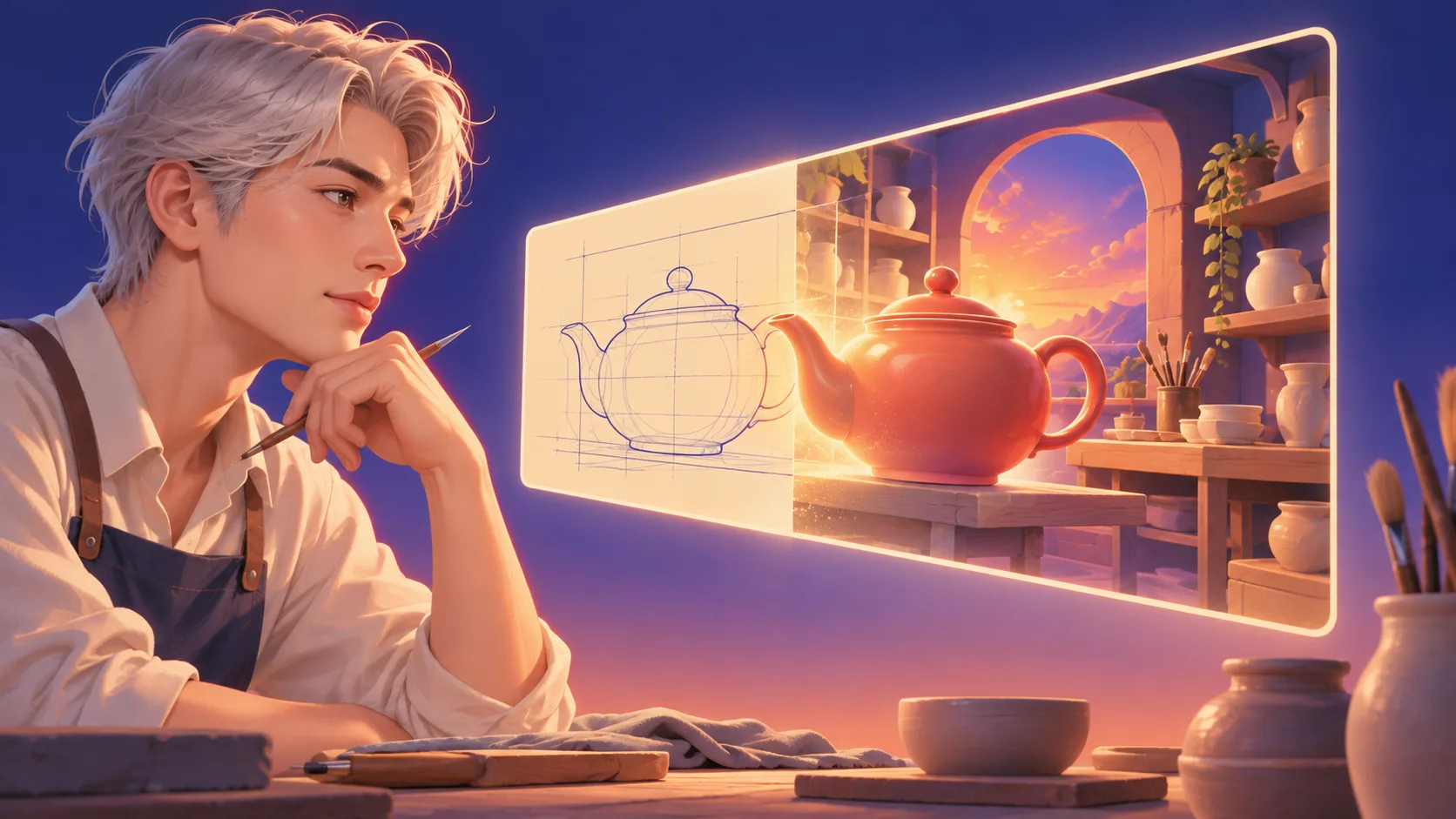
Use this order: subject → composition → setting → light → constraints. Replace vague praise with visible decisions. “One red teapot filling the lower half, handle and spout fully visible” gives more direction than “a stunning premium teapot.”
Keep the first scene simple. Ask for one dominant subject and specify empty space if the image will carry a headline later. Set the output ratio in the form; writing “widescreen” in the prompt does not replace that control.
Two prompts to adapt
Product scene — choose 16:9:
One matte coral-red ceramic teapot on a pale limestone shelf. Eye-level product photograph. Teapot fills the lower half, handle on the left and spout on the right, both fully visible. Empty upper half against a warm cream wall. Soft window light from the left, gentle contact shadow. No lettering, logos, or other objects.
Inspect the handle opening, spout, shadow, and crop. If the teapot is too small, revise only its requested size rather than adding more style adjectives.
Illustrated layout — choose 1:1:
A square editorial illustration of a tiny reading nook. One indigo armchair on the left, a low table with one closed coral book on the right, and a floor lamp behind the chair. Textured gouache on cream paper, soft afternoon light. Keep all three pieces of furniture fully inside the frame. No people, labels, or lettering.
Check the object count and spatial relationships. For lettering, quote the exact short phrase and name its location; inspect every character afterward. Add final text in an editor if spelling must be exact.
Test your wording with controlled settings
- Select Nano Banana 2 explicitly. Auto model selection may choose a different engine.
- Turn Enhance prompt off to test your wording unchanged. It is on by default and can expand a text-only brief.
- Choose 1:1, 16:9, 9:16, 4:3, or 3:4 for the destination.
- Start with Fast for a 1K draft. Auto quality and HD request 2K; check the credit estimate before running.
- Review the returned image at its intended display size and close up. Each revised attempt is another run.
Higher resolution cannot repair a missing object or an unclear layout. Compare revisions with the same model, ratio, quality, and enhancement setting so you can identify which instruction helped.
Use references for appearance, then revise one instruction
Nano Banana 2 accepts up to 14 reference images. Use only those needed and assign each a role: “Use image 1 for the teapot shape and image 2 for the palette; follow the layout in this brief.” References guide the result without guaranteeing exact geometry, identity, or labels.
For a crowded image, remove secondary objects. For clipping, name the parts that must remain visible. For the wrong lighting, change the light direction while keeping the rest fixed. Save the brief with the result so the next revision has a clear starting point.
The image generation guide covers the broader workflow. If you deliberately choose Nano Banana Pro for a different project, use its prompt guide and recheck the settings rather than assuming the models behave identically.
Frequently asked questions
Can I use Nano Banana 2 with only a text prompt?
Yes. In Pipe2 Image Generator, select Nano Banana 2 and enter a prompt. Reference images are optional; the model accepts up to 14 when you need visual guidance.
Which quality setting should I use for a draft?
Fast requests 1K output and costs less than the 2K tier. Auto and HD request 2K for Nano Banana 2. Check the credit estimate before each run.
Is Nano Banana 2 the same as Nano Banana 2.1?
No. They are separate model choices. Nano Banana 2 is Gemini 3.1 Flash Image; its scheduled shutdown is October 29, 2026. Nano Banana 2.1 is its replacement, so check model availability before starting a new project.