Grok Imagine Prompts: Examples for Still Images
Write Grok Imagine prompts for product photos, portraits, and illustrations. Control framing, test prompt enhancement, and revise one detail at a time.
How-to By Pipe2.ai Updated October 13, 2026
On this page
Try these pipelines
Useful Grok Imagine prompts describe one still image: the subject, setting, framing, medium, and light. In Pipe2 Image Generator, select Grok Imagine or Grok Imagine Quality, paste your brief, choose an aspect ratio, and run. A text prompt is enough; a reference photo is optional.
Build the prompt around visible decisions
Start with what the viewer should recognize, then specify where it sits in the frame. Use this order: subject → setting → composition → style → lighting → constraints. Replace vague praise such as “beautiful, masterpiece, ultra quality” with details someone could draw.
A useful constraint resolves a real ambiguity: “one teapot,” “full head visible,” or “empty space on the right.” Keep the brief coherent. Asking for both a flat vector illustration and a photorealistic photograph leaves the visual direction unclear. These examples are starting briefs, not tested outputs or promises of exact results.
Three Grok Imagine prompt examples
Product photograph — choose 16:9:
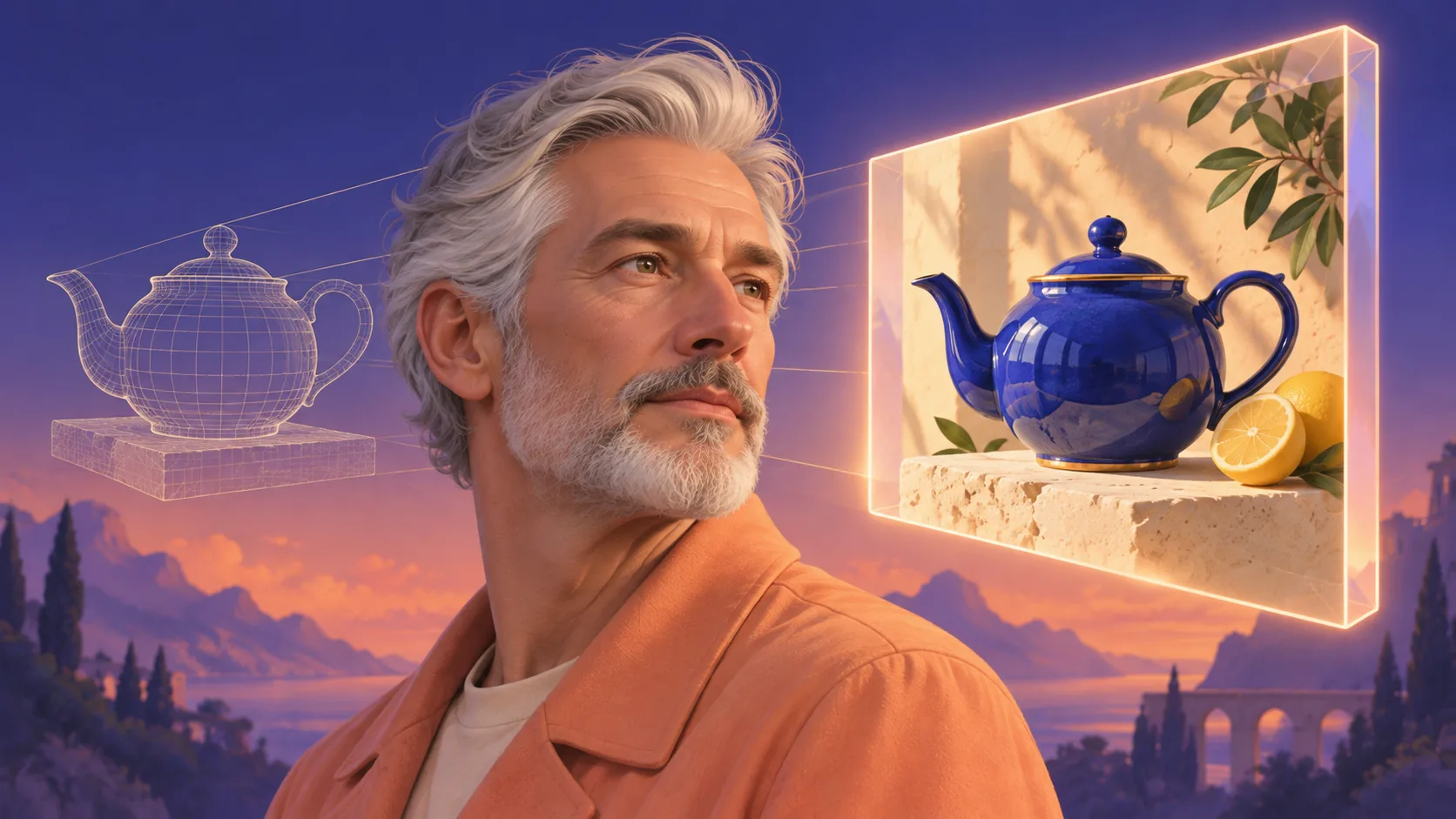
One cobalt-blue ceramic teapot on a pale limestone table. Eye-level editorial product photograph, teapot in the left third with empty space on the right. Soft window light from the left, gentle shadow, warm cream background. No text, logo, or other objects.
The material, placement, and light each make a concrete decision. If the teapot is too small, replace “in the left third” with “fills the left half”; keep the other instructions stable.
Portrait — choose 3:4:
An adult potter wearing a clay-stained linen apron in a quiet pottery studio. Chest-up portrait at eye level, full head visible, shelves softly out of focus behind them. Natural documentary photograph, soft overcast daylight, realistic skin texture. No text or logo.
Check the face, hands if visible, and apron edges. More adjectives will not reliably repair anatomy; simplify the pose or revise the problematic detail.
Editorial illustration — choose 1:1:
A tiny observatory perched on the back of a sleeping whale beneath a starry sky. Centered square composition, complete whale visible, generous space around its silhouette. Textured gouache illustration in indigo, cream, and muted coral, soft moonlight. No lettering or border.
The medium and palette give this scene a consistent visual direction. To try another style, change the medium alone before changing the subject or colors.
Run a controlled prompt test in Pipe2
- Open Image Generator and explicitly select a Grok Imagine image model. Auto may select another model.
- Paste one brief without references for your first text-only test.
- Choose 1:1, 16:9, 9:16, 4:3, or 3:4 to suit the destination. Prompt words do not replace this control.
- Turn Enhance prompt off to test your exact wording. It is enabled by default and can expand a short text-only brief.
- Review the credit estimate for the selected model and quality before running. Each new attempt needs its own budget.
The pipeline returns one image. This guide covers still-image prompts; Grok Imagine Video is a separate model and workflow. Writing “4K” in the brief does not set an output resolution. Use the available quality controls and check their estimate instead.
Revise the cause of the problem
If the image is crowded, remove secondary objects. If the crop is wrong, specify the shot distance and which parts must remain visible. If the lighting feels inconsistent, name one primary light source. Keep the model, ratio, and quality fixed while changing one prompt instruction, so the comparison stays useful.
Inspect the result both at its intended display size and close up. Check object count, geometry, faces, hands, reflections, and any visible lettering. A precise brief improves direction but does not guarantee faithful details.
Use a reference when words cannot define the subject
Add a reference photo when the task depends on a particular product shape or appearance. State what the reference contributes and what may change. Check the selected model’s reference limits and credit estimate before adding files; Grok image models do not accept video references in this pipeline.
For broader setup advice, see the AI image generator guide. If you already have the right image and want a targeted change, use the AI image editor guide to write an instruction that protects the surrounding scene.
Frequently asked questions
Can I generate a Grok Imagine image without a reference photo?
Yes. In Pipe2 Image Generator, select Grok Imagine or Grok Imagine Quality and enter a text prompt. Reference images are optional for this workflow.
Does writing 4K in a prompt set the output resolution?
No. Prompt wording describes the scene; the pipeline's quality and aspect-ratio controls determine the output settings available for the selected model.
Should I leave prompt enhancement on?
For a short text-only brief, enhancement can add composition, style, and lighting details. Turn it off when testing a carefully written prompt so your wording is sent unchanged.

